 pyxpo
pyxpoWhiteboard
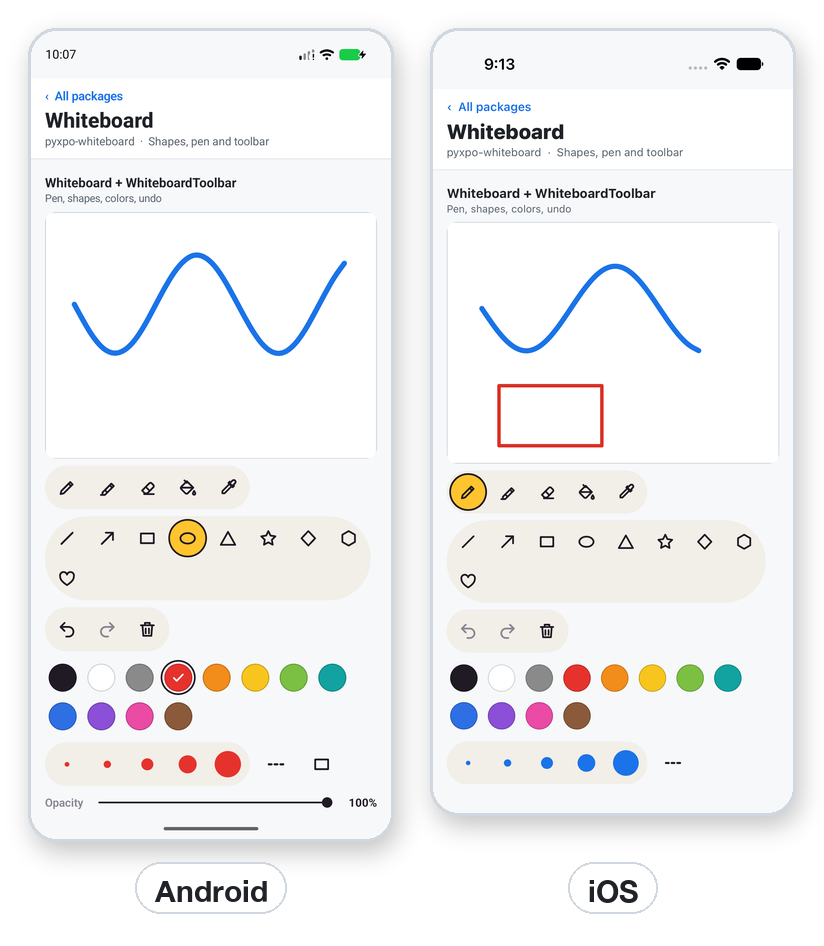
Give your app a whiteboard with a pen, a see-through marker, an eraser, a fill bucket and a color picker, nine outlined or filled shapes, solid or dashed lines, and plain, grid, dotted or lined pages. use_whiteboard() holds the tool settings and the board state, WhiteboardToolbar shows every control in wrapping rows, and each toolbar piece also works alone. Save and restore the drawing as a list of plain elements, export it to PNG or JPEG trimmed to the ink, and use the pure-Python geometry helpers without a device.
- pyxpo-whiteboard
- v0.1.0a1
- Native: Swift + Kotlin
- Like none (pyxpo only)
Install
Install the package into the same environment as pyxpo.
Add whiteboard to modules in your app config, then import it in your code.
[tool.pyxpo]
modules = ["whiteboard"]import pyxpo_whiteboard as WBNeeds Python 3.9+ and pyxpo>=0.1.0a3.
This module has native code. After you add it, run pyxpo run or pyxpo build again so it is compiled into the app. Hot reload alone is not enough.
Platforms
Quick start
from pyxpo import Button, Text, View, component, use_async, use_state
import pyxpo_whiteboard as WB


@component
def Sketch():
    board = WB.use_whiteboard(color="#1F1A24", width=6)
    saves, set_saves = use_state(0)
    note, set_note = use_state("")

    async def save():
        if saves > 0:
            image = await board.to_image_async(trim=True, padding=16)
            set_note("Nothing to save" if image is None else image["uri"])

    use_async(save, [saves])
    return View(
        WB.Whiteboard(board=board, style={"flex": 1, "minHeight": 240}),
        WB.WhiteboardToolbar(board=board),
        Text("%d elements. %s" % (board.element_count, note)),
        Button(title="Save", disabled=board.is_empty, on_press=lambda: set_saves(saves + 1)),
        style={"flex": 1},
    )
Permissions
pyxpo adds these to Info.plist and AndroidManifest.xml for you when the module is listed.
| iOS | None. No Info.plist texts. |
|---|---|
| Android | None. |
API reference
Board
use_whiteboard(tool="pen", color="#1F1A24", width=4, opacity=1, fill_shapes=False, dash=False, pattern="none", palette=PALETTE, widths=WIDTHS, theme=None) sets the starting values and returns a Board. Give the same board to Whiteboard and every toolbar piece, and they stay in step.
board.tool / set_tool(tool)One of TOOLS: pen, marker, eraser, fill, picker and the nine shapes. The picker returns to the tool before it after one pick.
board.color / set_color(color)Any pyxpo color. Picking one while the eraser is on switches back to the pen.
board.width / set_width(width)pt/dp, above 0 and at most 500. The eraser and shape outlines use it too.
board.opacity / set_opacity(opacity)Above 0 up to 1, for the pen, shapes and fill. The marker is always at 40 %.
board.fill_shapes / set_fill_shapes(bool)Shapes filled with the current color, or outline only.
board.dash / set_dash(bool)Dashed pen, marker and shape outlines. The eraser is always solid.
board.pattern / set_pattern(name)"none", "grid", "dots" or "lines", 24 pt/dp apart. Drawn on screen only, never in an exported image.
element_count, can_undo, can_redo, drawing, is_emptyState from the board. is_empty is True with no elements and no touch: the time for a "draw here" hint.
Board and handle methods
They call the mounted board and raise RuntimeError before mount. Call them from an event, not during render. With ref=, Whiteboard gives a WhiteboardHandle with the same methods.
undo(), redo(), clear()clear() can be undone.
await get_elements_async()→ list[dict]The drawing, oldest first.
await set_elements_async(elements)→ NoneAccepts any pyxpo color, checks every element before sending (a bad one raises and leaves the drawing as it was), and empties undo and redo.
await to_image_async(format="png", trim=False, padding=0, scale=None, background=True, quality=1)→ dict or None{"uri", "width", "height", "x", "y"}. trim crops to the ink plus padding and returns None when there is none. scale is pixels per pt/dp, up to 8. background=False gives a transparent PNG. The file goes to the app cache.
Whiteboard props
Whiteboard also works alone with plain props and a ref.
boardA use_whiteboard() board. It supplies the tool settings and its ref.
tool, color, width, opacityDefaults "pen", "#000000", 4 and 1.
fill_colorFills shapes; None is outline only.
background_colorThe page, default "#ffffff". The eraser shows it, and exports use it.
enabled, fill_toleranceFalse ignores touches. fill_tolerance is 0 to 255, default 32, for the fill bucket.
dash, pattern, pattern_colorDashed lines and the page pattern.
on_change(state){"element_count", "can_undo", "can_redo"} after each element, undo, redo, clear and set_elements_async.
on_draw_start({"tool"}), on_pick({"color"})A touch started drawing, and the color (0xAARRGGBB) from the picker tool.
styleSizes the board. Without a height nothing shows.
Toolbar
WhiteboardToolbar(board, on_clear=None, shapes=True, opacity=True, history=True, patterns=True, spectrum=False, style=None)Everything in wrapping rows, so narrow screens get more rows. spectrum=True adds the full ColorGrid.
ToolPicker(board, tools=DRAW_TOOLS), ShapePicker(board, shapes=SHAPES)Pen, marker, eraser, fill and picker, and the nine shapes.
ColorPalette(board, colors=None, size=None), ColorGrid(board, hues=12, shades=5, size=None)Swatches from the board's palette, or a full spectrum with a row of grays.
WidthPicker(board, widths=None), OpacitySlider(board, minimum=0.1, label=True)A dot per width, and opacity 10 to 100 %.
ShapeFillToggle(board), DashToggle(board), PatternPicker(board, patterns=PATTERNS)Outline or filled, solid or dashed, and the page pattern.
HistoryButtons(board, on_clear=None, clear=True)Undo, redo and clear. on_clear replaces the clear, for example to ask first.
themeOverrides keys of WB.THEME: ink, muted, surface, soft, border, accent, on_accent, track, button (size), swatch (size) and gap. ToolIcon(name, size=24, color=..., weight=2.2, fill=None) draws any icon in ICONS.
Geometry helpers
Pure Python, no device needed.
shape_outline(shape, x0, y0, x1, y1, width=0, segments=48)→ listThe polylines a shape draws: one closed loop, or a line plus two arrow-head lines.
to_strokes(elements)→ listPlain strokes: shapes become outlines, the marker draws like the pen, fills are left out.
transform(elements, scale, dx=0, dy=0)→ listEvery point to p * scale + (dx, dy), widths scaled too. Fit a drawing to a bigger board.
bounds(elements)→ tuple or None(x0, y0, x1, y1) of lines and shapes, half a line width out. Fills and the eraser do not count.
color_grid(hues=12, shades=5)→ listRows of "#RRGGBB" colors.
Types
Names also come in camelCase, such as getElementsAsync and toImageAsync.
Elements
| Key | Type | Description |
|---|---|---|
stroke | dict | {"type": "stroke", "tool": "pen" | "marker" | "eraser", "color", "width", "points": [x0, y0, x1, y1, ...]}. A dict with no type is a stroke, so pyxpo-drawing-canvas strokes load as they are. |
shape | dict | {"type": "shape", "shape": "rect", "color", "width", "fill", "x0", "y0", "x1", "y1"}. fill 0 is outline only. |
fill | dict | {"type": "fill", "x", "y", "color"}. Redrawn each time, so it follows edits made before it. |
dash | bool | Strokes and shapes may also have "dash": True. Points are pt/dp from the view's top left. |
Constants
| Key | Type | Description |
|---|---|---|
Tool | class | PEN, MARKER, ERASER, FILL, PICKER, LINE, ARROW, RECT, ELLIPSE, TRIANGLE, STAR, DIAMOND, HEXAGON, HEART. |
TOOLS, DRAW_TOOLS, SHAPES, PATTERNS, IMAGE_FORMATS | tuple | The allowed values. |
PALETTE, WIDTHS, MARKER_ALPHA | constant | 12 colors, (2, 4, 8, 14, 24) and 0.4. |
ICONS, THEME, TOOL_LABELS, PATTERN_LABELS | dict | Icons, the toolbar theme and labels. |
Errors
| Key | Type | Description |
|---|---|---|
ValueError | bad value | A bad tool, shape, pattern, format, width, opacity, scale or quality, a stroke with an odd number of coordinates, or an unknown element type. |
TypeError | bad elements | set_elements_async got a non-list, or an element that is not a dict. |
RuntimeError | not mounted | The board or handle was used before the Whiteboard mounted. |
ModuleNotLinkedError | pyxpo.module_api | "whiteboard" is missing from modules. Add it and rebuild. |
Examples
Recipe: a lesson board
Start from a dashed template, draw on a grid page, and send a trimmed JPEG.
from pyxpo import Button, Row, Text, View, component, use_async, use_state
import pyxpo_whiteboard as WB

TEMPLATE = [{"type": "shape", "shape": "rect", "color": "#8A8A8A", "width": 2, "fill": 0,
             "x0": 20, "y0": 20, "x1": 220, "y1": 120, "dash": True}]


@component
def Lesson(on_done):
    board = WB.use_whiteboard(color="#2F6FE4", width=4, pattern="grid")
    loads, set_loads = use_state(0)
    sends, set_sends = use_state(0)

    async def load_template():
        if loads > 0:
            await board.set_elements_async(TEMPLATE)

    async def send():
        if sends > 0:
            image = await board.to_image_async(format="jpg", quality=0.85, padding=8, trim=True)
            if image is not None:
                on_done(image["uri"])

    use_async(load_template, [loads])
    use_async(send, [sends])
    return View(
        WB.Whiteboard(board=board, style={"flex": 1}),
        WB.WhiteboardToolbar(board=board, on_clear=lambda: board.clear()),
        Text("Draw your answer" if board.is_empty else "%d marks" % board.element_count),
        Row(Button(title="Start from template", on_press=lambda: set_loads(loads + 1)),
            Button(title="Send", disabled=board.is_empty, on_press=lambda: set_sends(sends + 1))),
        style={"flex": 1},
    )
A toolbar of your own
Pick the pieces, your own palette and widths, and a theme.
from pyxpo import Row, View, component
import pyxpo_whiteboard as WB


@component
def Compact():
    board = WB.use_whiteboard(tool="pen", palette=["#1F1A24", "#E5322D", "#2F6FE4"], widths=[2, 6, 14],
                              theme={"accent": "#C7E3FF", "button": 40})
    return View(
        Row(WB.ToolPicker(board=board, tools=("pen", "marker", "eraser")), WB.HistoryButtons(board=board, clear=False)),
        WB.Whiteboard(board=board, style={"flex": 1}),
        Row(WB.ColorPalette(board=board), WB.WidthPicker(board=board)),
        style={"flex": 1},
    )
Testing
The geometry helpers need no fakes. Whiteboard and the toolbar only build view descriptions and validate their props, so a test can call them directly.
import pyxpo_whiteboard as wb


def test_shapes_are_closed_loops():
    (loop,) = wb.shape_outline("rect", 0, 0, 10, 20)
    assert loop[:2] == loop[-2:] == [0, 0]
    lines = wb.shape_outline("arrow", 0, 0, 100, 0, width=4)
    assert len(lines) == 3 and lines[0] == [0, 0, 100, 0]


def test_bounds_and_transform():
    elements = [{"type": "shape", "shape": "rect", "color": 0xFF000000, "width": 2,
                 "x0": 10, "y0": 10, "x1": 30, "y1": 20}]
    assert wb.bounds(elements) == (9.0, 9.0, 31.0, 21.0)
    moved = wb.transform(elements, 2, dx=5)
    assert (moved[0]["x0"], moved[0]["x1"], moved[0]["width"]) == (25, 65, 4.0)
    assert wb.bounds([]) is None
Good to know
- No text tool, no pressure, and shapes cannot be moved after drawing. Put a Text over the board, or edit the elements and call set_elements_async.
- There is no live sync. Send the elements through your own server and apply them with set_elements_async.
- Elements are in pt/dp of the board they were drawn on. Use transform for a different size.
- On the web and desktop the image is written to ~/.cache/pyxpo/whiteboard/, so uri is a file:// path like on a phone.
- Shape tools on Android drew nothing with synthetic adb touches. This is not confirmed as a bug; try a real finger.