 pyxpo
pyxpoDrawing canvas
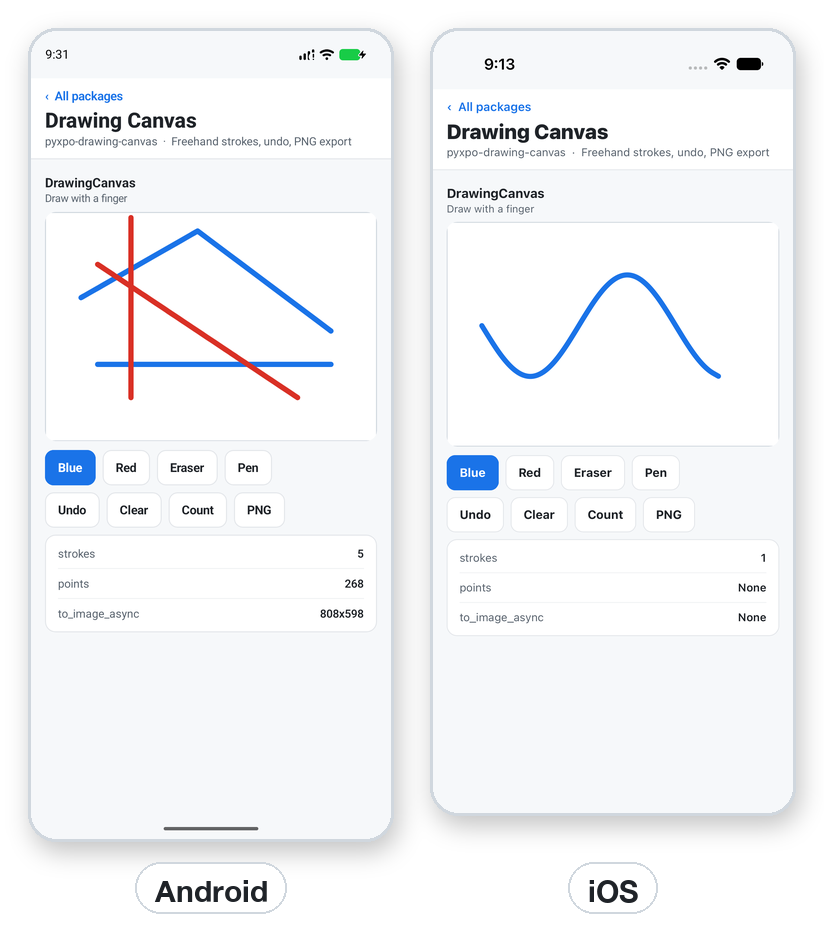
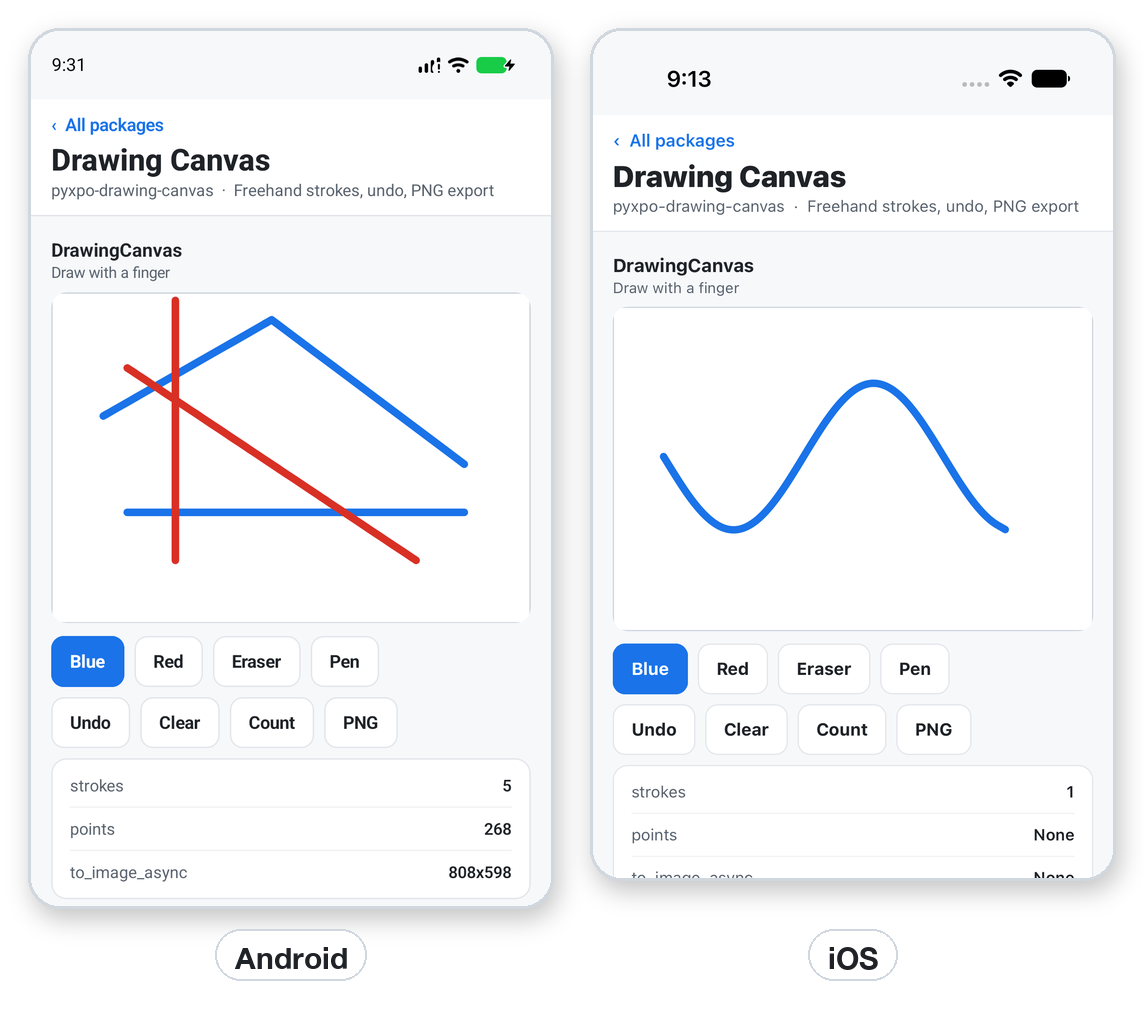
DrawingCanvas is a view the user draws on with a finger, a pen or the mouse. It keeps an undo and redo history, can save and load strokes, and exports the drawing as a PNG or JPEG file, trimmed to the ink if you want. Every platform uses the same stroke format and the same curve, so strokes saved on one platform look the same on another.
- pyxpo-drawing-canvas
- v0.1.0a1
- Native: Swift + Kotlin
- Like react-native-skia and signature-canvas style drawing views
Install
Install the package into the same environment as pyxpo.
Add drawing-canvas to modules in your app config, then import it in your code.
[tool.pyxpo]
modules = ["drawing-canvas"]import pyxpo_drawing_canvas as DrawingCanvasNeeds Python 3.9+ and pyxpo>=0.1.0a3.
This module has native code. After you add it, run pyxpo run or pyxpo build again so it is compiled into the app. Hot reload alone is not enough.
Platforms
Quick start
import pyxpo_drawing_canvas as DrawingCanvas
from pyxpo import Button, View, component, use_ref

@component
def Sketch():
    canvas = use_ref(None)

    async def export():
        image = await canvas.current.to_image_async(trim=True, padding=16)
        if image:
            print(image["uri"], image["width"], image["height"])

    return View(
        DrawingCanvas.DrawingCanvas(ref=canvas, stroke_color="#222222", stroke_width=6,
                                    style={"flex": 1}),
        Button(title="Export", on_press=export),
        style={"flex": 1},
    )
Permissions
pyxpo adds these to Info.plist and AndroidManifest.xml for you when the module is listed.
| iOS | None. |
|---|---|
| Android | None. |
API reference
DrawingCanvas props
stroke_color="#000000"Any pyxpo color. Applies to the next stroke.
stroke_width=4In pt/dp, greater than 0 and at most 500. The eraser uses it too.
tool="pen""pen" or "eraser". The eraser removes ink and leaves the background.
background_color="#ffffff"Shown under the ink and used by to_image_async(background=True).
enabled=TrueFalse ignores touches.
on_change=NoneCalled with {"stroke_count", "can_undo", "can_redo"} after each stroke, undo, redo, clear and set_strokes_async.
styleSizes the canvas, for example {"flex": 1}.
ref.current
camelCase names also work: getStrokesAsync, setStrokesAsync, toImageAsync.
undo(), redo()→ NoneTake back or apply again the last stroke or clear().
clear()→ NoneRemoves every stroke. undo() brings them back.
await get_strokes_async()→ list[dict]The visible strokes, oldest first, as {"tool", "color" (0xAARRGGBB), "width", "points"}. points is flat [x0, y0, x1, y1, ...] in pt/dp from the view's top left.
await set_strokes_async(strokes)→ NoneReplaces the drawing and empties undo and redo. color takes any pyxpo color.
await to_image_async(format="png", trim=False, padding=0, scale=None, background=True, quality=1)→ {"uri", "width", "height", "x", "y"} or NoneWrites the drawing to a file in the app cache. trim=True crops to the ink plus padding pt/dp and returns None for an empty canvas; x and y are the crop's top left in the view. scale is pixels per pt/dp (default: the screen's). background=False gives a transparent PNG. quality (0 to 1) is for jpg.
Examples
Save and restore a drawing
Strokes are plain JSON, so you can store them and load them later.
import json
from pyxpo_file_system import File, Paths

async def save(canvas):
    File(Paths.document, "sketch.json").write(json.dumps(await canvas.get_strokes_async()))

async def load(canvas):
    f = File(Paths.document, "sketch.json")
    if f.exists:
        await canvas.set_strokes_async(json.loads(f.text_sync()))
Good to know
- On the web and the desktop window the page encodes the image and Python writes it to ~/.cache/pyxpo/drawing-canvas/ (or $XDG_CACHE_HOME), so uri is a file:// path on every platform.
- Export renders the strokes again at the requested scale, so a small screen still gives a sharp large image.